




We Connect Business
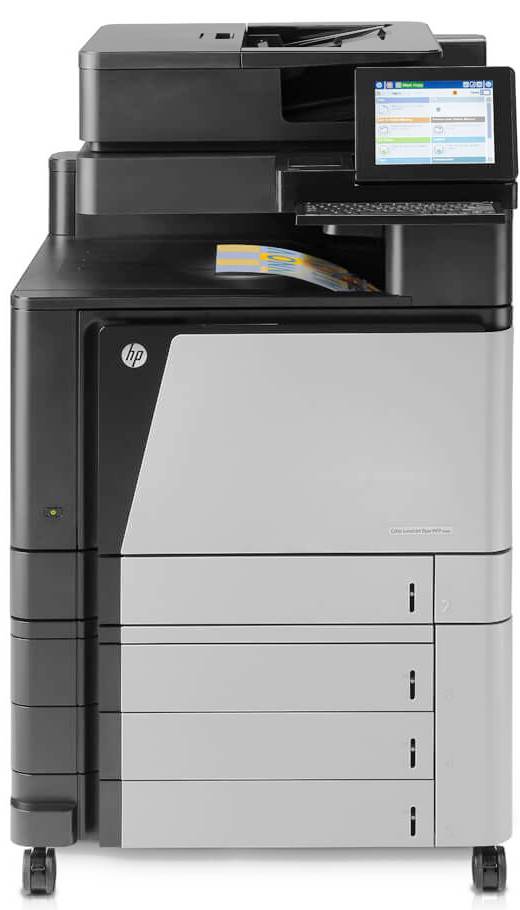
We design, install, and maintain reliable Computer networks for your business and home.Get the best network with kandlemb.net
From Top to Bottom
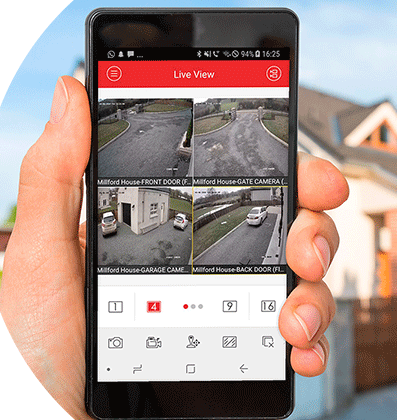
Comprehensive CCTV by Kandlemb.net We protect what matters, from Entrance to Roof, with the Best remote view.

Stop Intruders
Fast detection. Instant protection, Because Safety Can’t Wait. We install Alarm Systems That Stop Intruders Cold.
Best Access Control
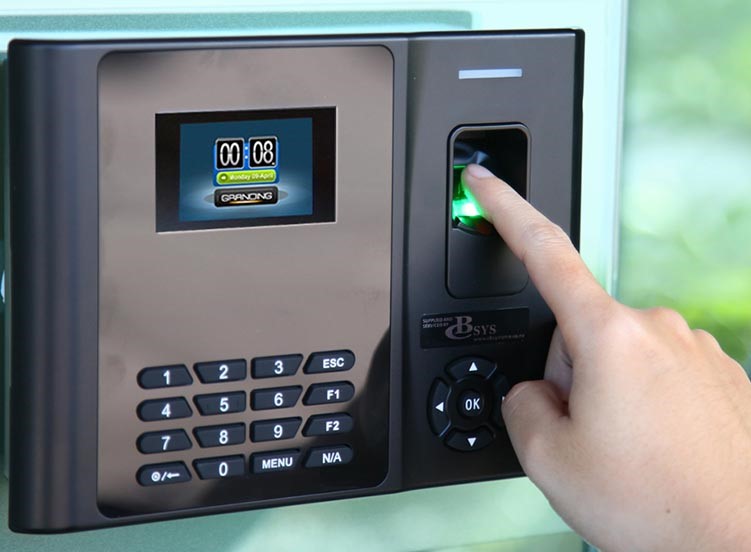
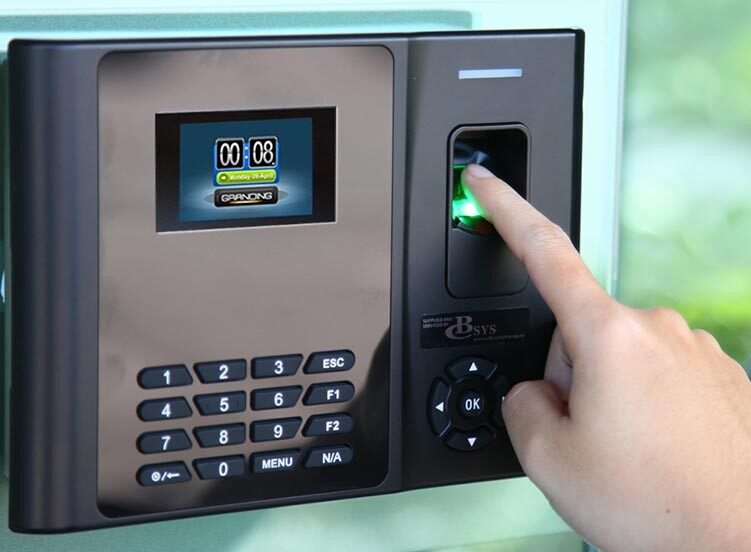
We Install the access control that allows only the right people to Get IN. Who Enters, Where and When?

Happy Customers
From our Computer networking solutions to our digital security systems and web design services, we ensure every project meets the highest standards of quality and performance. Every installation, every configuration, and every line of code is handled with care, precision, and professionalism, for our customers satisfaction.
Step 1:
Check the physical connectionsConfirm the router and modem are powered on.Check that Ethernet cables are firmly connected.Inspect cables for damage.Check the WAN/Internet port and LAN ports.Confirm that the fibre ONT or other internet device has power.
Step 2:
Restart the network equipmentTurn off the router and modem/ONT.Wait about 30 seconds.Power on the ONT or modem first.Wait for its connection lights to stabilize.Power on the router and test the connection.Avoid factory-resetting the router unless necessary.
Step 3:
Check the connected deviceMake sure Wi-Fi is enabled.Confirm the correct Wi-Fi network is selected.Test another phone or computer.If only one device has a problem, forget and reconnect to the Wi-Fi network.Disable Airplane mode if it is enabled.
Step 4:
Run Windows network testsOpen Command Prompt (CMD) and run these commands one at a time: Replace 192.168.1.1 with your router's actual default gateway from ipconfig.127.0.0.1 tests the local TCP/IP stack.Router ping tests local connectivity.8.8.8.8 tests internet reachability.nslookup tests DNS resolution.
Step 5:
Check IP address and DNS
Look for:IPv4 addressDefault gatewayDHCP serverDNS servers